This article consists of FAQs, steps for setting up your company profile, creating lead qualification survey, and exporting your leads via the app
Frequently Asked Questions:
What is the Informa Connect Tech Events app?
The Informa Connect Tech Events app is where any registered team members can manage your virtual company page, connect with attendees, and use the lead scanning functionality
Do I need to be registered for the event to set up my company’s profile on the “Informa Connect Tech Events” app even if I'm not attending the event?
Yes, the app is sync'd with our registration system. You'll need to be registered with an event pass in order for a profile to be created within the event app.
Is the attendee list in the event app?
Yes, the attendee list will appear in the app 3 weeks prior to the event, once the attendees have access. The attendee list does not export into excel and is only viewable within the app. Make sure your company profile is ready to be viewed by attendees at this time!
How do I scan badges onsite?
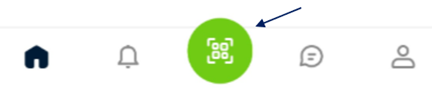
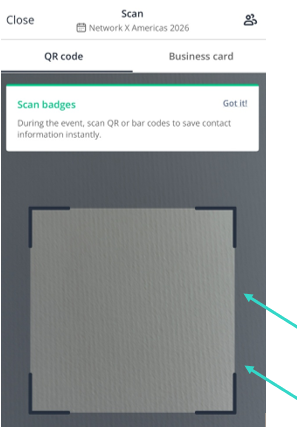
When logged in on a phone, you will see a QR code on the bottom of the app. If you are logged in on a desktop the camera will not appear, as you cannot scan badges via a desktop. Select the QR code & a box will appear. You will hoover over the badge and it will automatically be scanned & saved to your lead report.
________________________________________________________________________________
Setting up your company's profile:
Register for an event pass through the exhibitor portal to access the "Informa Connect Tech Events" app. Registration is required even if you're not attending the event, as it creates your login credentials for the app.
Once you are logged into the event app, select your company's name on the left of your screen:
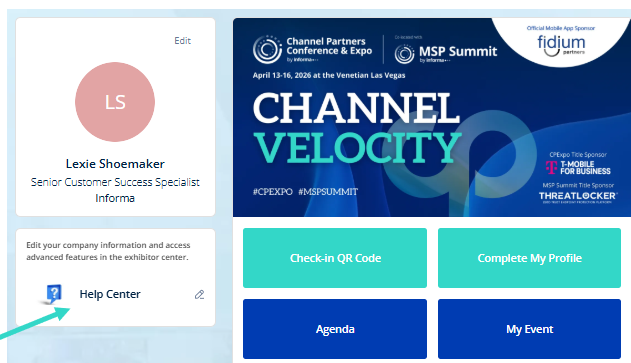
Easily add any documents, products & services, and any booth giveaways under the Company Profile portion of the app. [Thumbnail: at least a 400x400px (1:1 ratio) image, no larger than 1MB]
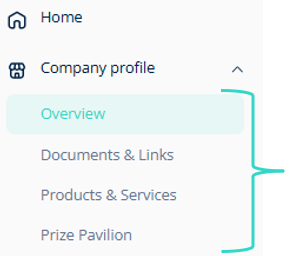
Be sure to add as many items as possible to this section—when an attendee clicks on your items, their information will automatically be captured in your lead report!
Next you'll want to customize your company's profile within the overview section:
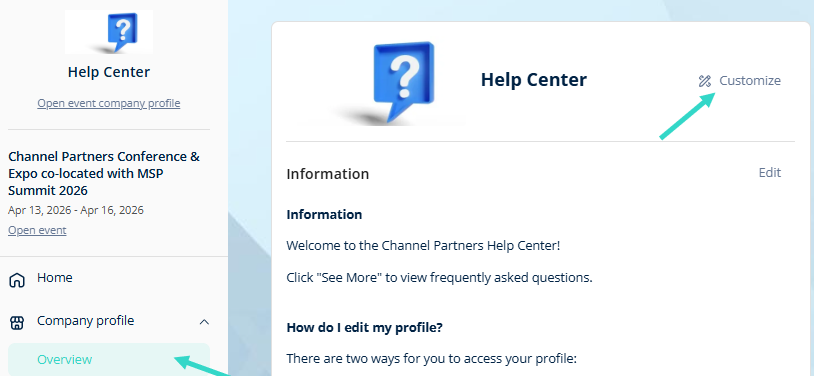
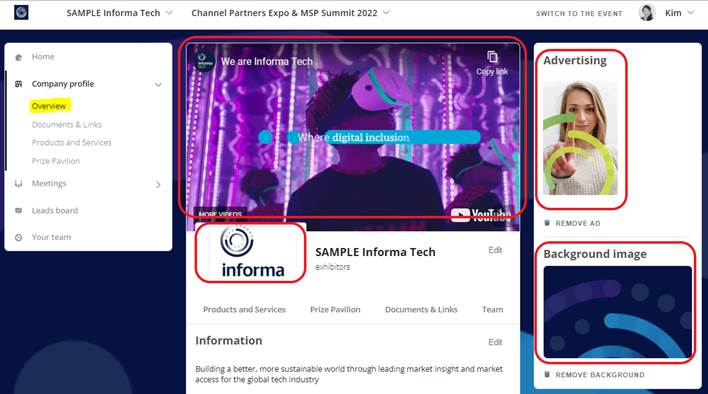
To customize your page, you can also add branding, including a Logo, Header, Banner Ad, and Background Image:
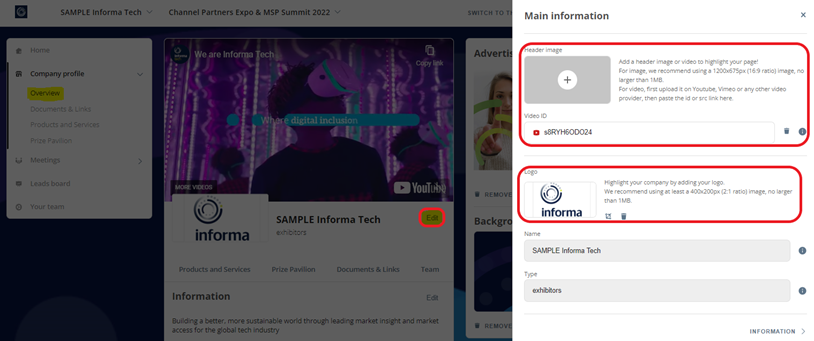
To add a header and logo, click “Edit” next to your company name. Then, upload image files OR add a Youtube video link for a video header in the pop-up window:
Header: 1200x675px (16:9 ratio) image, no larger than 1MB or Youtube ID/link
Logo: at least a 400x200px (2:1 ratio) image, no larger than 1MB
To add a vertical banner ad, click the “Add an Ad” button:
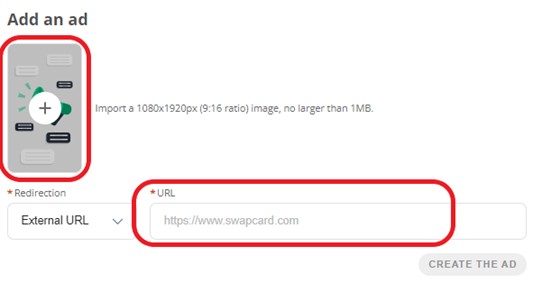
Ad: Import a 1080x1920px (9:16 ratio) image, no larger than 1MB
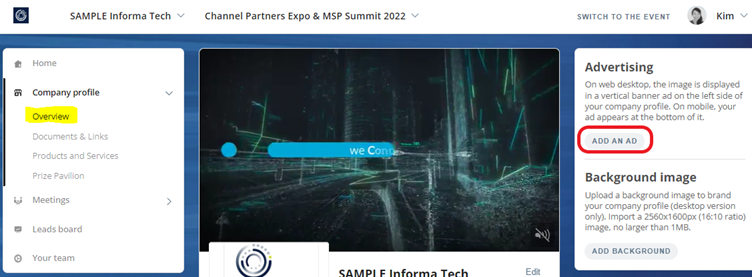
This will open a new window where you can upload your banner ad image and add a link:
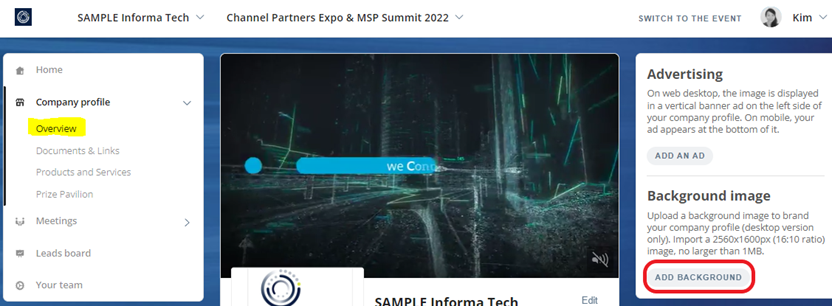
To add a background skin to your page, click “Add Background” to upload an image file:
Background: 2560x1600px (16:10 ratio) image, no larger than 1MB
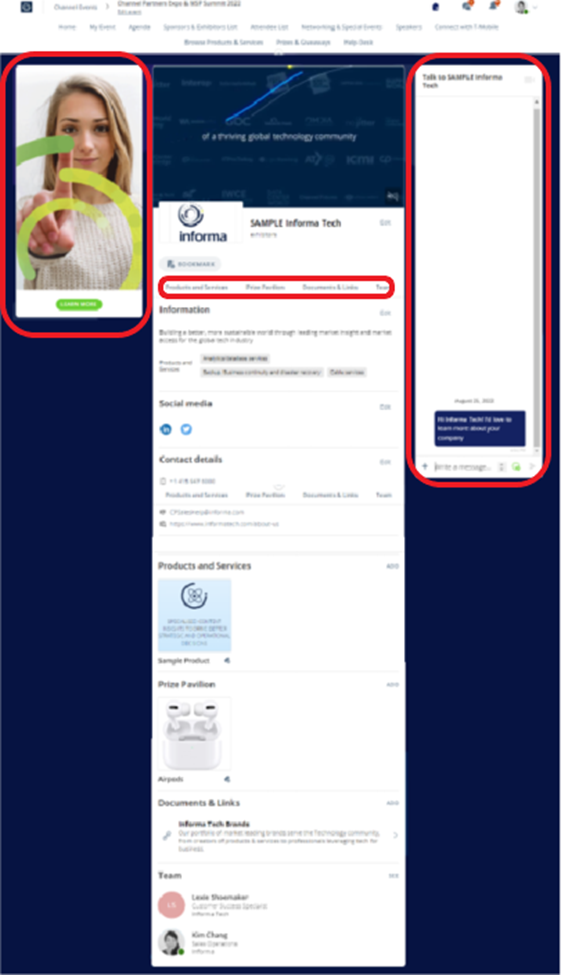
The attendee view of your company page will show the banner ad on the left side and a messaging window on the right. There will also be navigational links to the Products & Services, Prize Pavilion, and Documents & Links sections below:
________________________________________________________________________________
Adding a Lead Qualification Survey:
The lead scanning feature is advancing further. Exhibitors can now better qualify their leads by creating a list of lead qualification fields directly within the Exhibitor Center, creating one survey per event. All members within a company will have the same list, ensuring a unified approach. After scanning attendees' badges during onsite events, exhibitors and sponsors can seamlessly qualify their leads using a pre-created survey.
Filling out the survey is optional to provide more flexibility for exhibitors. There is no limit to the number of questions exhibitors can create and the survey includes existing default qualification fields (Score, Tags, and Note fields), which cannot be deleted.
Examples of lead qualification questions:
- Type of lead (existing partner, potential partner, supplier, etc.)
- What topics/details were discussed?
- Does this person want to be contacted immediately?
- I agree to receive marketing communications from (insert company name)
Create a lead qualification survey by following the following steps:
Log into the virtual event > Company name on the left side > Leads > Lead qualification:
- Select customize lead qualification
- Choose the category of question you would like for your initial survey question
- Click the pencil icon to begin personalizing your initial lead qualification question
- Replace the qualification field name with your question
- Replace the values with the answers you’d like your team to choose from
For onsite Lead Qualification usage, refer to the steps below:
- Log into the app > Select the camera icon > Scan badge > Select “qualify” > Fill out survey > Save
Lead qualification answers will appear in the lead report available for exhibitors/sponsors within the app. The lead qualification answers currently do not push over into your Lead Insights profile. The sooner you follow up with your leads the better. Studies show that the average time to contact your leads should be within 42 hours of the event. If you wait too long you risk losing their trust and attention.
________________________________________________________________________________
Exporting your leads within Informa Connect Tech Events:
Select your company's name on the left of your screen > Leads > Export > Download
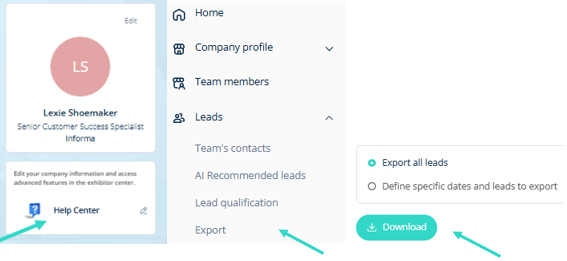
Please view ALL tabs and see below for a description of each tab
Contacts: This includes people who were either scanned by your team onsite or had a confirmed connection with your team through the app.
- Column Y indicates whether it was a badge scan or virtual connection & Column AE indicated who on your team scanned the badge
Meeting confirmed: This refers to individuals who confirmed a meeting request with your team through the app
Chat: People who chatted with your booth staff via the app.
Booth: People who viewed or bookmarked your virtual profile.
- Column Z & AA will differentiate that for you
Item: This tab would show people who viewed or bookmarked your company’s Products & Services assets via the app.
- Columns W & X will differentiate that for you
Document: This tab would show people who viewed or bookmarked your company’s Documents & Links assets via the app.
Advertisement: This tab would show people who clicked on your banner ad on your company profile in the app.
Session bookmarks and scans: These are no longer within this lead report. Those are only viewable within your Lead Insights profile
Was this article helpful?
That’s Great!
Thank you for your feedback
Sorry! We couldn't be helpful
Thank you for your feedback
Feedback sent
We appreciate your effort and will try to fix the article